> ## Documentation Index
> Fetch the complete documentation index at: https://docs.crane-it.com/llms.txt
> Use this file to discover all available pages before exploring further.
# Custom projects
> Here how you can create and deploy a custom project.
CraneIt allows you to **self-host** any containerized application in minutes. It's a simple, fast, and secure way to deploy to AWS.
CraneIt also offers a *Library*, a set of projects ready for deployment in just two clicks.
***
## Get started
### Step 1: Create a project
For this step, we'll assume you've covered the quickstart tutorial.
If not, you can find it here:
Deploy your first app with Crane It
To create a project, simply click the *"New project"* button in the [projects tab](https://crane-it.com/logged-in/projects).
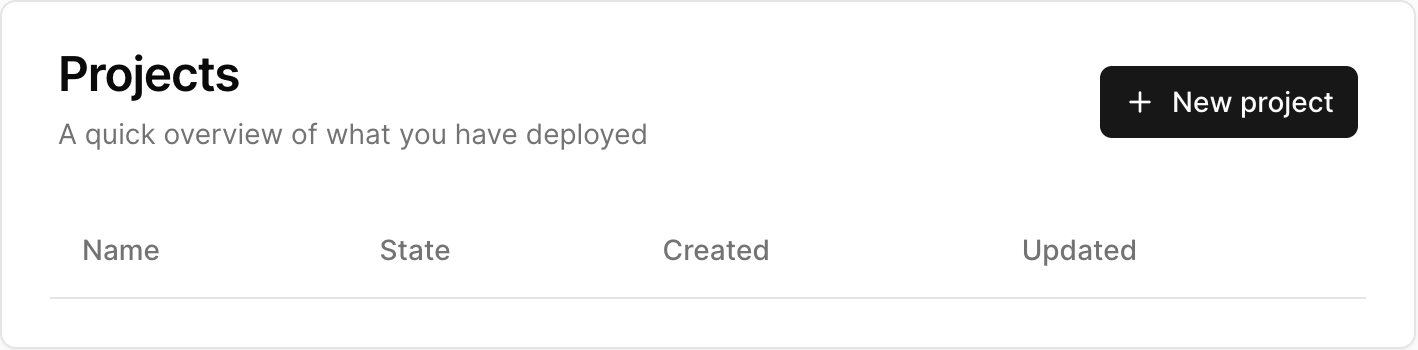 Once done, either click one the project name (New project), or on the *"Edit"* button.
### Step 2: Customize project configuration
This section is dedicated to the global customization of your project.
As shown on the image bellow, you'll be met with the following options:
* **Https**: Whether or not to access your project via https (defaults to false / http).
* **Instance size**: Defines the ec2 instance type to use to deploy your project. Larger instances are more powerful, but cost more.
* **The configuration**: You can find additional info regarding this section in these two articles:
Customize your project with docker compose.
Customize your project with our wizard.
Once done, either click one the project name (New project), or on the *"Edit"* button.
### Step 2: Customize project configuration
This section is dedicated to the global customization of your project.
As shown on the image bellow, you'll be met with the following options:
* **Https**: Whether or not to access your project via https (defaults to false / http).
* **Instance size**: Defines the ec2 instance type to use to deploy your project. Larger instances are more powerful, but cost more.
* **The configuration**: You can find additional info regarding this section in these two articles:
Customize your project with docker compose.
Customize your project with our wizard.
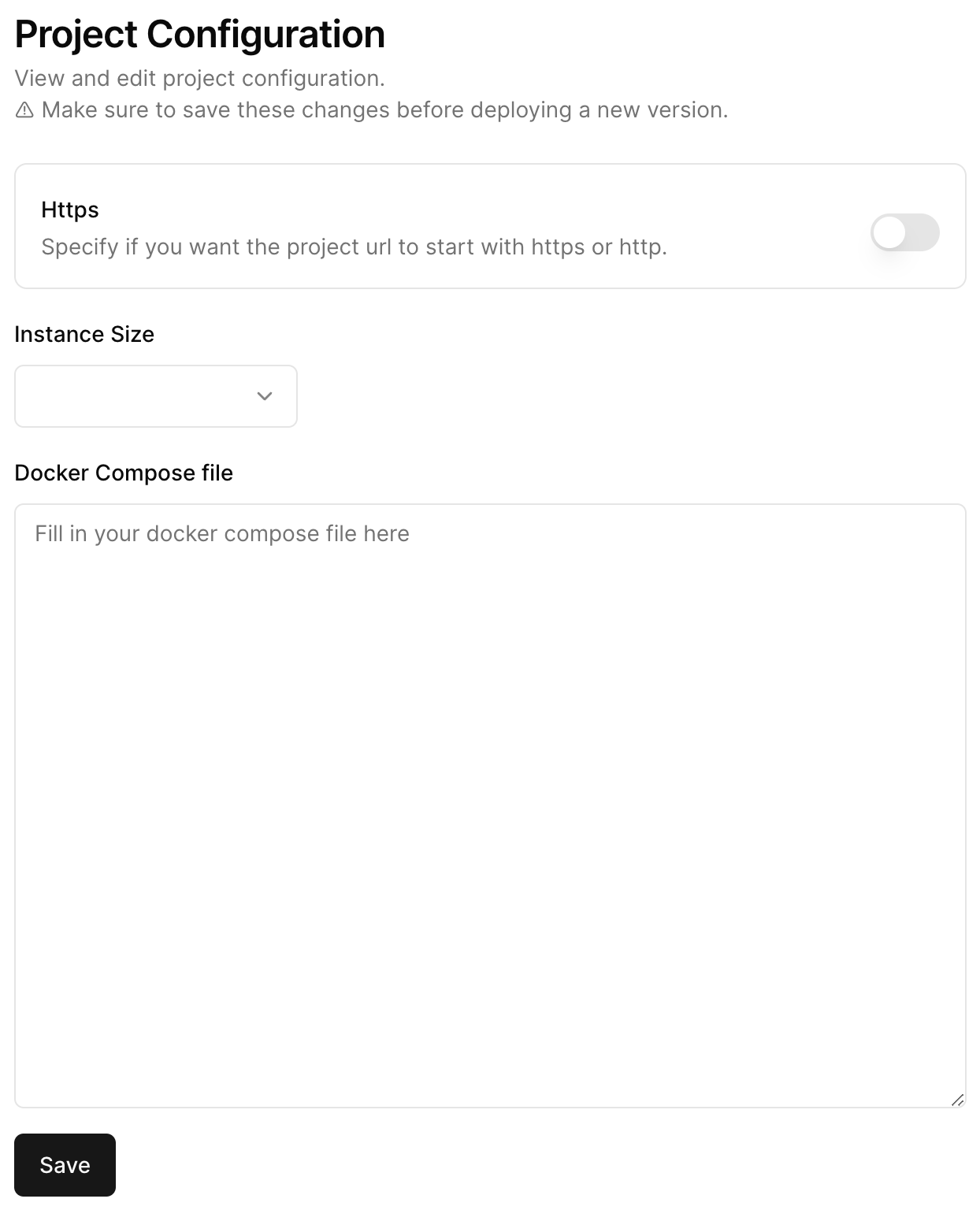 Don't forget to save before leaving this section!
### Step 3: Edit project details
This section is dedicated to your project's displayed info.
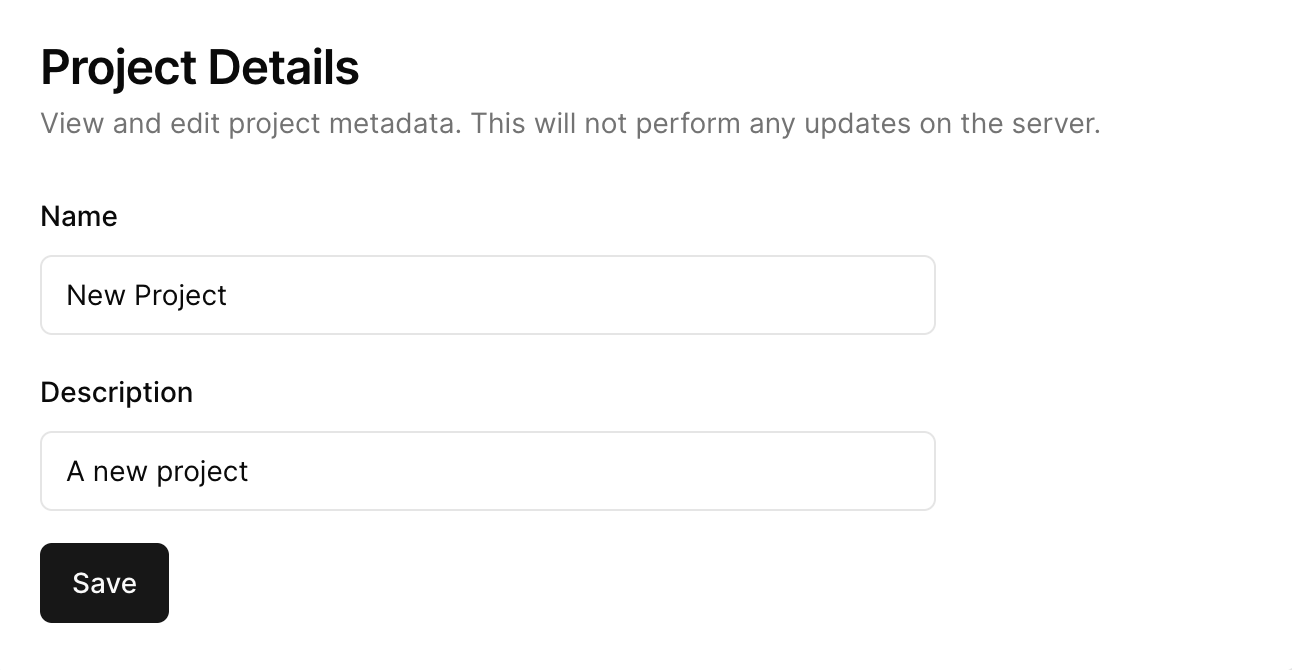
As shown on the image bellow, you'll be met with the following options:
* **Name**: to remember what the project does.
* **Description**: to give a little context so you don't forget anything next time.
Don't forget to save before leaving this section!
### Step 3: Edit project details
This section is dedicated to your project's displayed info.
As shown on the image bellow, you'll be met with the following options:
* **Name**: to remember what the project does.
* **Description**: to give a little context so you don't forget anything next time.
 ### Step 4: Edit project secrets
This section is dedicated to your project's secrets.
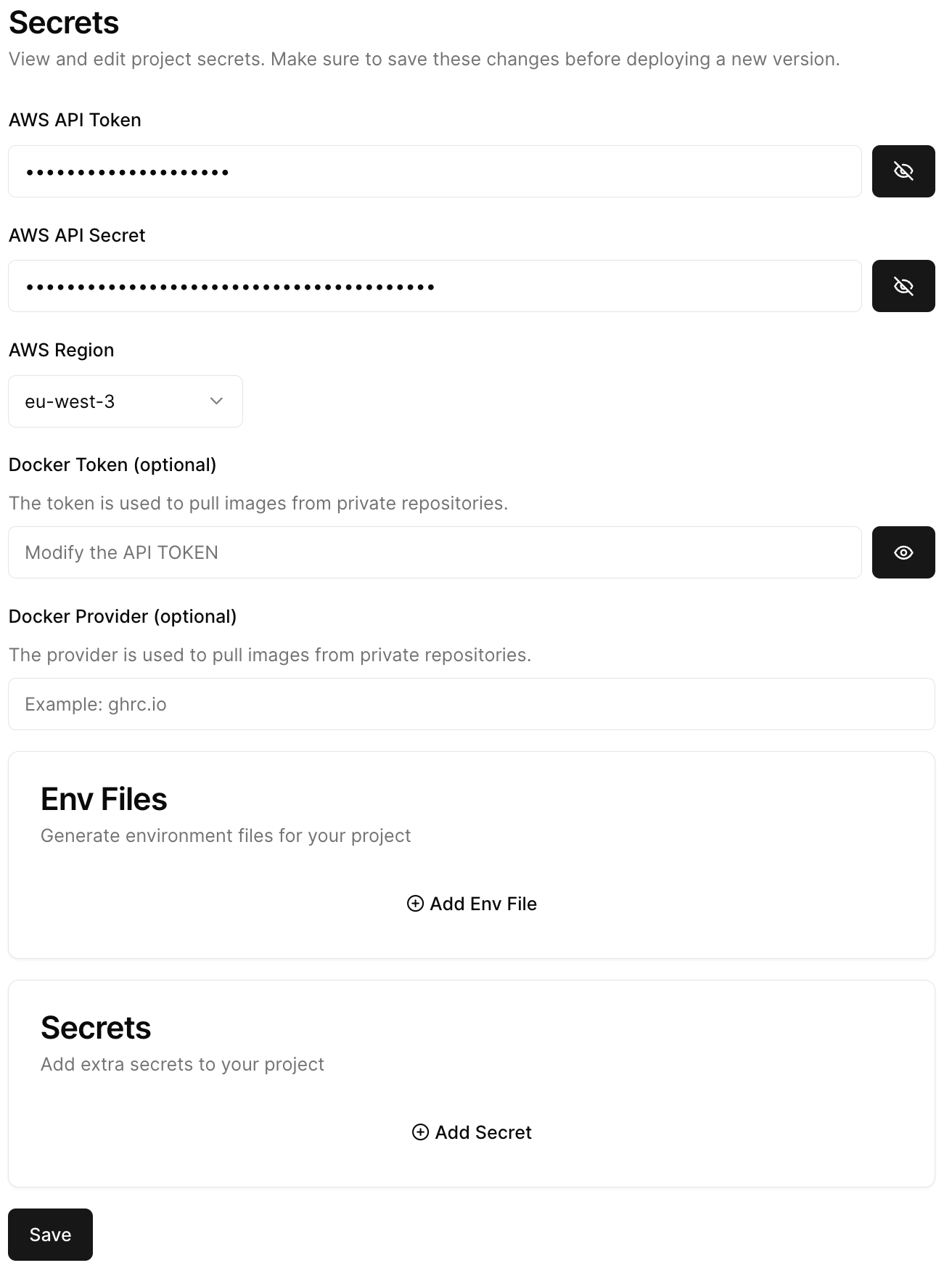
As shown on the image bellow, you'll be met with the following options:
* **AWS API Token**: The token that we use to manage your AWS account (**DON'T SHARE THIS WITH ANYONE!**).
* **AWS API Secret**: The private key that corresponds to the token (**DON'T SHARE THIS WITH ANYONE!**).
* **AWS Region**: When we will deploy your servers.
* **Docker Token (optional)**: The token that we use to pull images from private docker registries.
* **Docker Provider (optional)**: Where your private registry is hosted (for example github's registry is hosted at ghcr.io).
* **Env Files**: Write entire environment files, that will be uploaded to your server, and found in the .envs folder in your ec2 instance (available during boot).
* **Secrets**: Key value pairs that will be passed as environment variables during the boot sequence of your server.
### Step 4: Edit project secrets
This section is dedicated to your project's secrets.
As shown on the image bellow, you'll be met with the following options:
* **AWS API Token**: The token that we use to manage your AWS account (**DON'T SHARE THIS WITH ANYONE!**).
* **AWS API Secret**: The private key that corresponds to the token (**DON'T SHARE THIS WITH ANYONE!**).
* **AWS Region**: When we will deploy your servers.
* **Docker Token (optional)**: The token that we use to pull images from private docker registries.
* **Docker Provider (optional)**: Where your private registry is hosted (for example github's registry is hosted at ghcr.io).
* **Env Files**: Write entire environment files, that will be uploaded to your server, and found in the .envs folder in your ec2 instance (available during boot).
* **Secrets**: Key value pairs that will be passed as environment variables during the boot sequence of your server.